How to Create a Quiz
Build a Quest quiz, add questions, and configure essential question controls
Written By Maya
Last updated 18 days ago
What You’ll Do
Create a quiz inside a supported Quest, add your first questions, and use the basic question controls you need to continue building your quiz.
Before You Start
Open the Playbook you want to work on in the Playbook Editor
Confirm that you can see the Quest Path on the left and the Canvas on the right
Add or select a Basic Quest, Adaptive Quest, or Review Quest
The steps below use a Basic Quest as the example.
Steps
Drag a Basic Quest, Adaptive Quest, or Review Quest into the Quest Path.
Select the Quest so its content appears in the Canvas.
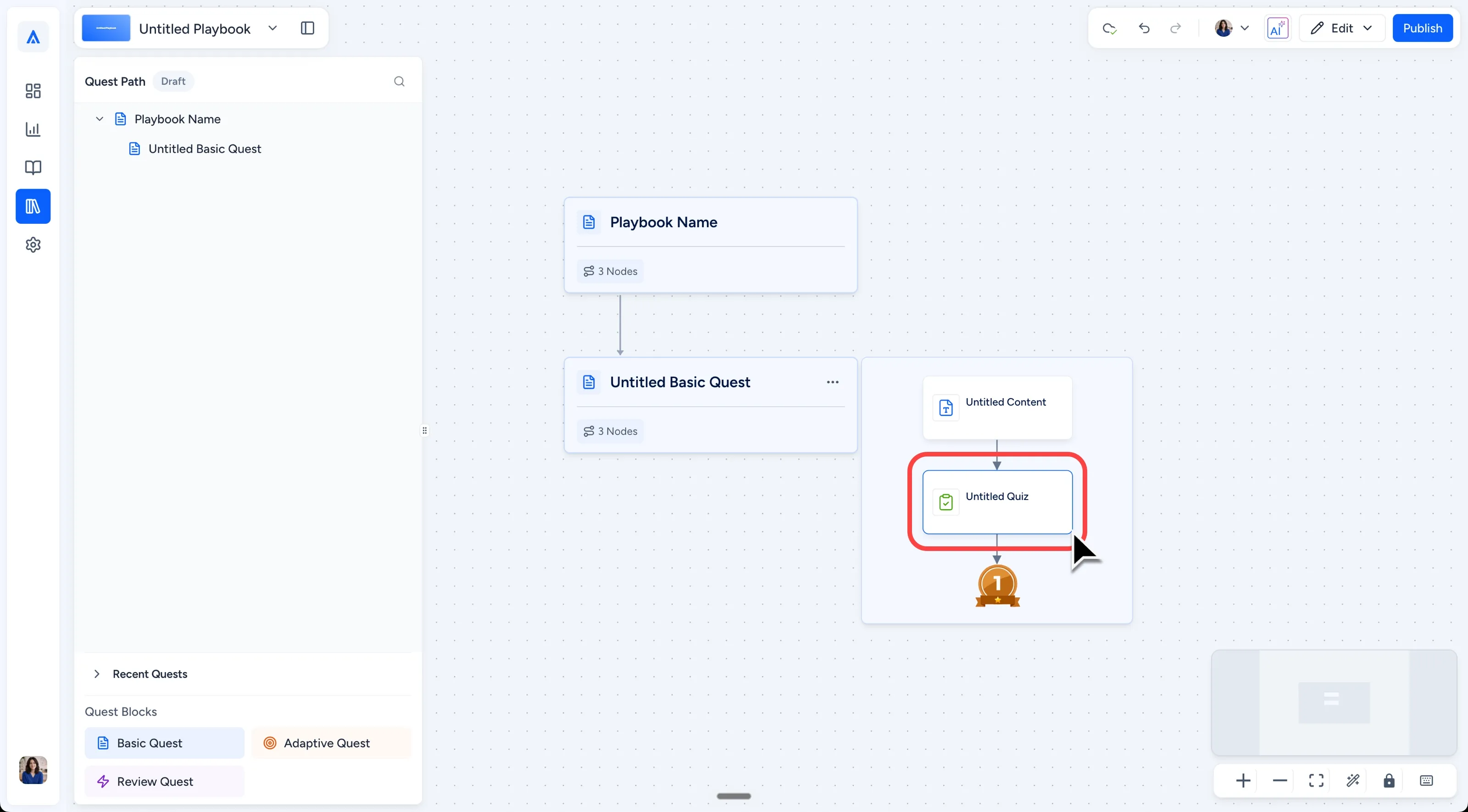
Find the Untitled Quiz node in the Quest and select it to open the Quiz Editor. The node appears as a box with a green check/clipboard-style icon.
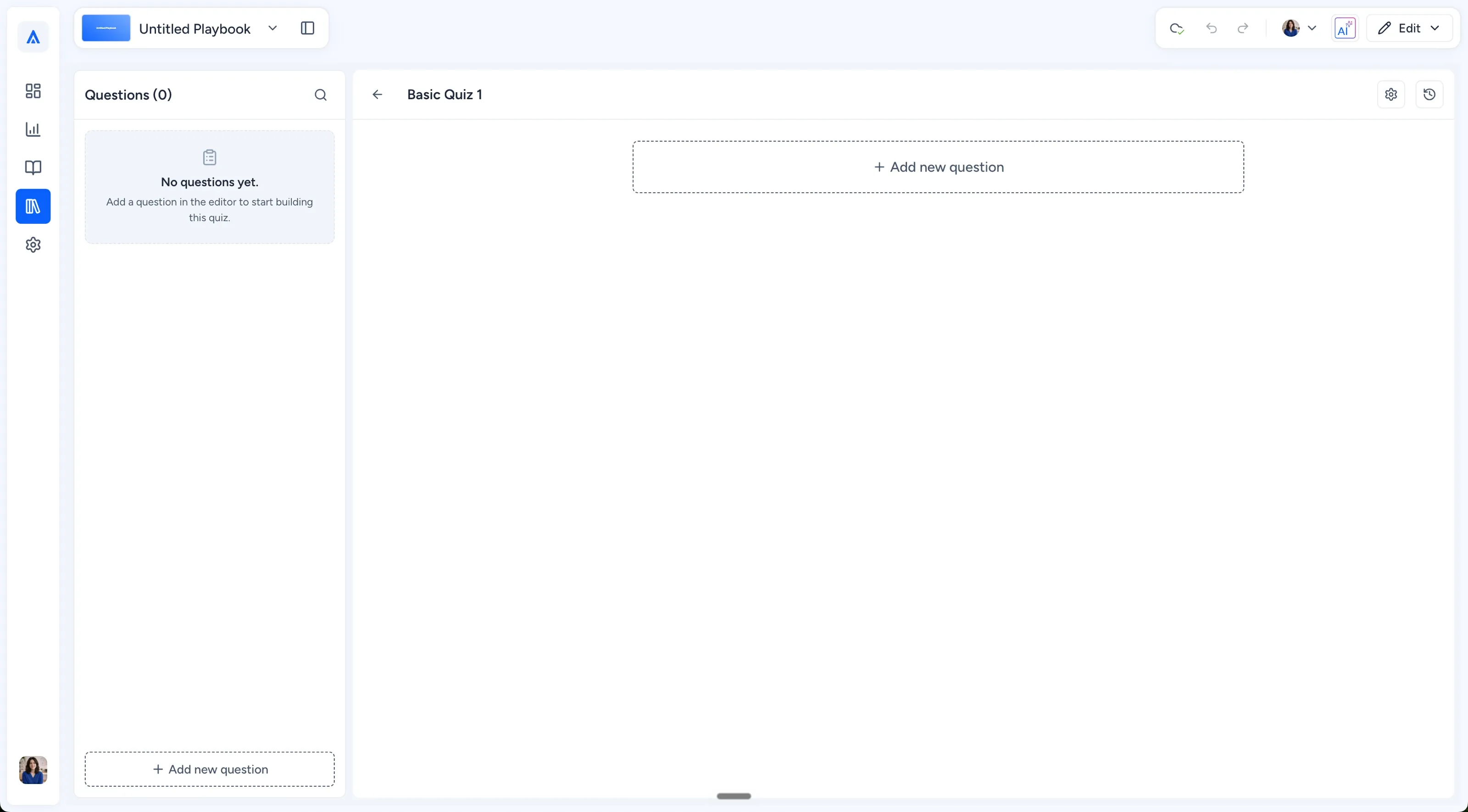
In a new quiz, confirm that the heading says Untitled Quiz and the left panel shows Questions (0). The empty state reads: “+ Add a new question.”
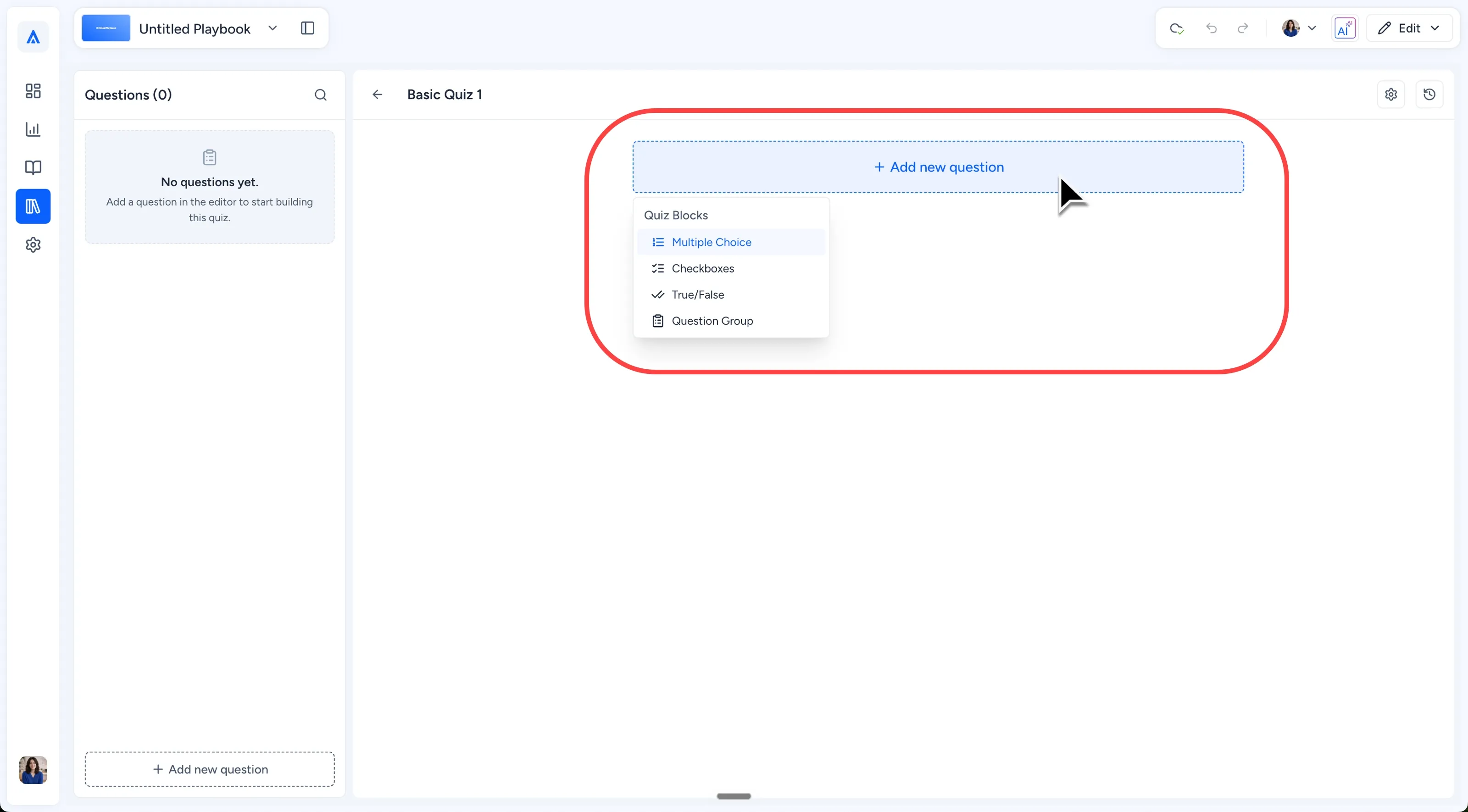
Select + Add new question. From the question type menu, choose Multiple Choice, Checkboxes, True/False, or Question Group. Learn more about quiz question types and when to use each one.
Enter the content for your selected question type. Repeat + Add new question as needed. Each question you create appears in the Questions panel on the left.
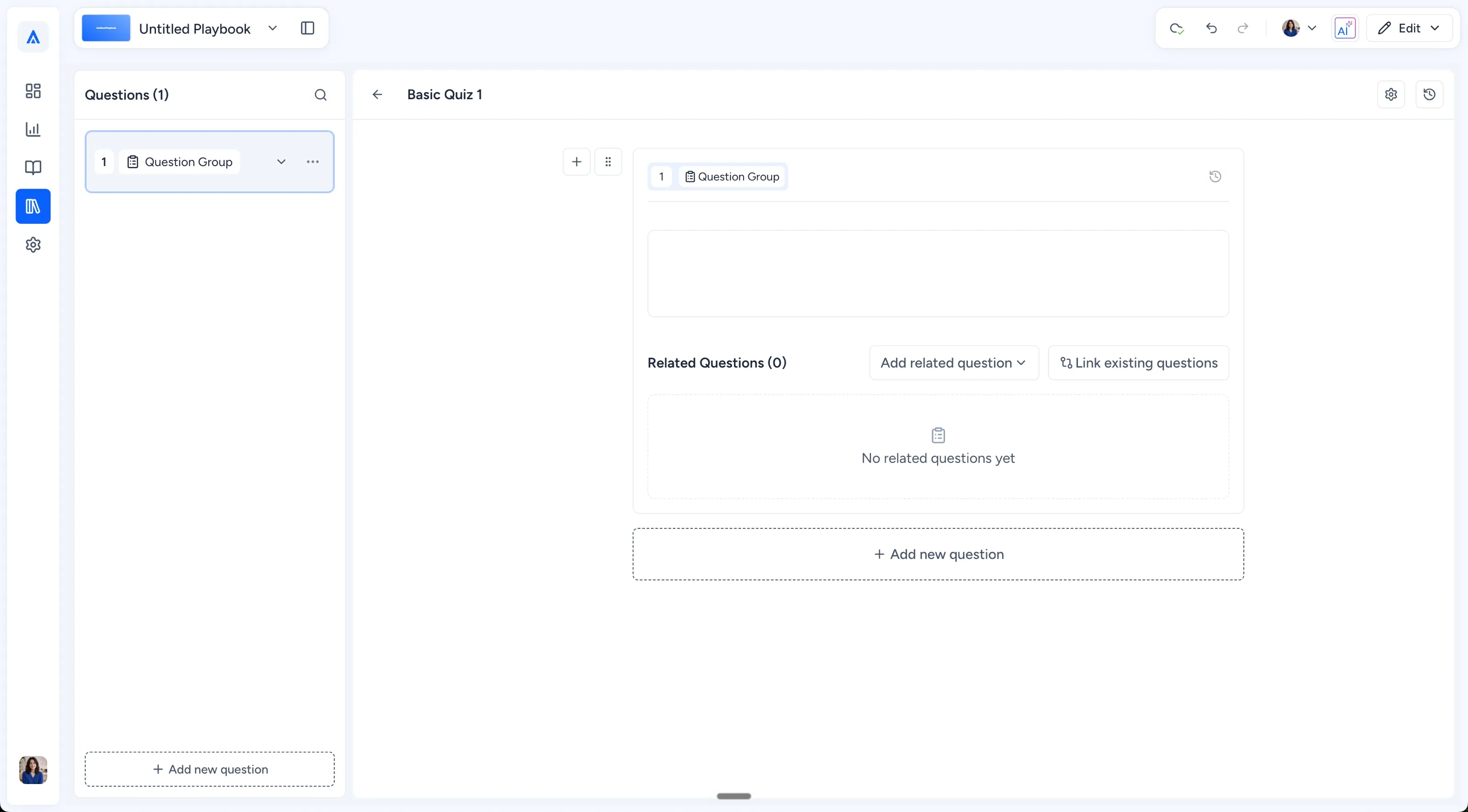
If you add a Question Group, name the group and use Add related question to create a new question within the group or Link existing questions to associate a question that already exists in the quiz. Learn how to create a Question Group for the complete workflow.
Use the Settings gear at the top right of the Quiz Editor when you need quiz-level configuration.
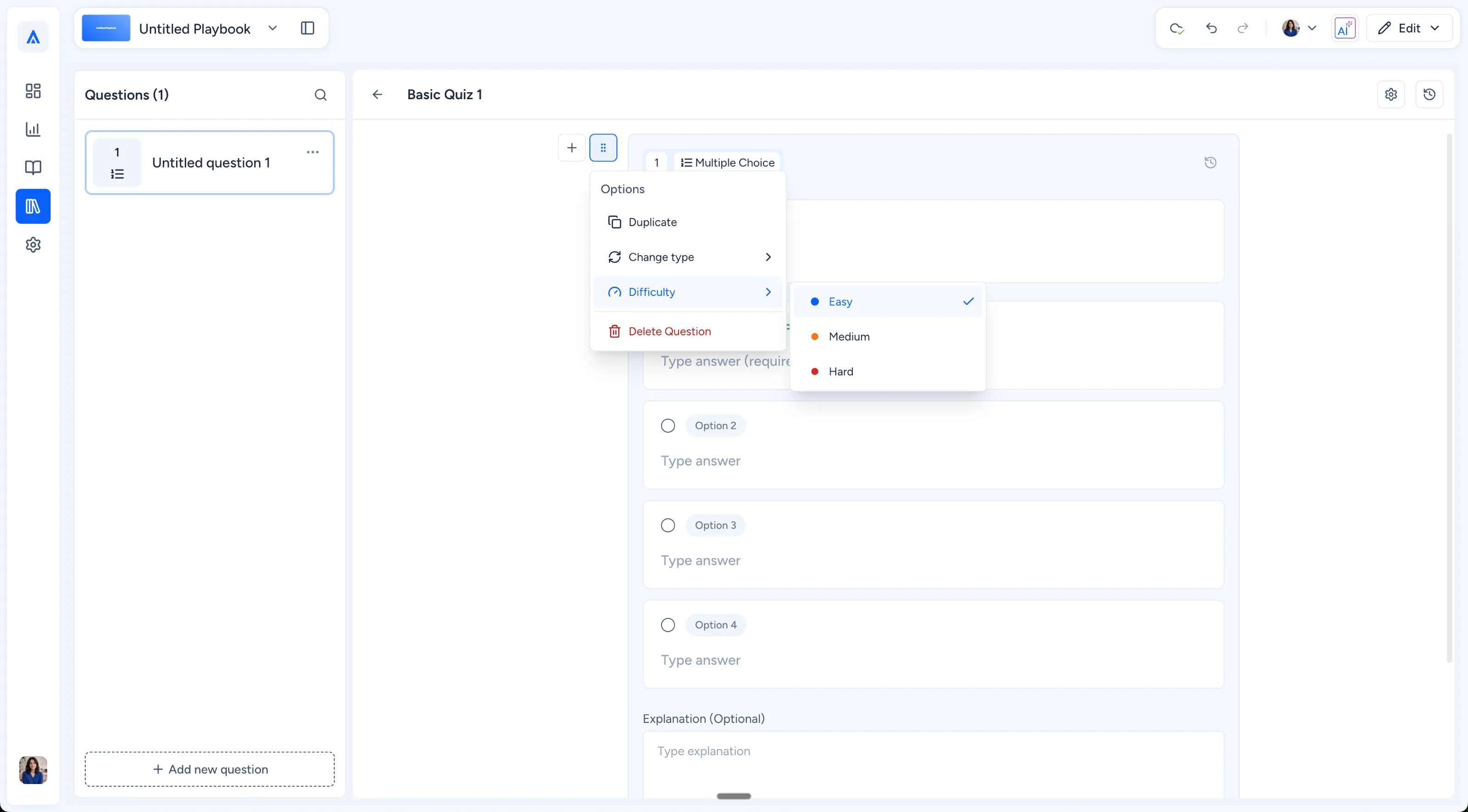
This is where settings such as question ordering and random sampling are managed. Learn how to edit a quiz for advanced quiz settings, version history, and other post-creation controls.For a Multiple Choice, Checkboxes, or True/False question, select the six-dot icon beside the question type to open the Options menu. Use Difficulty to choose Easy, Medium, or Hard. Use Change type to switch between Multiple Choice, Checkboxes, and True/False.
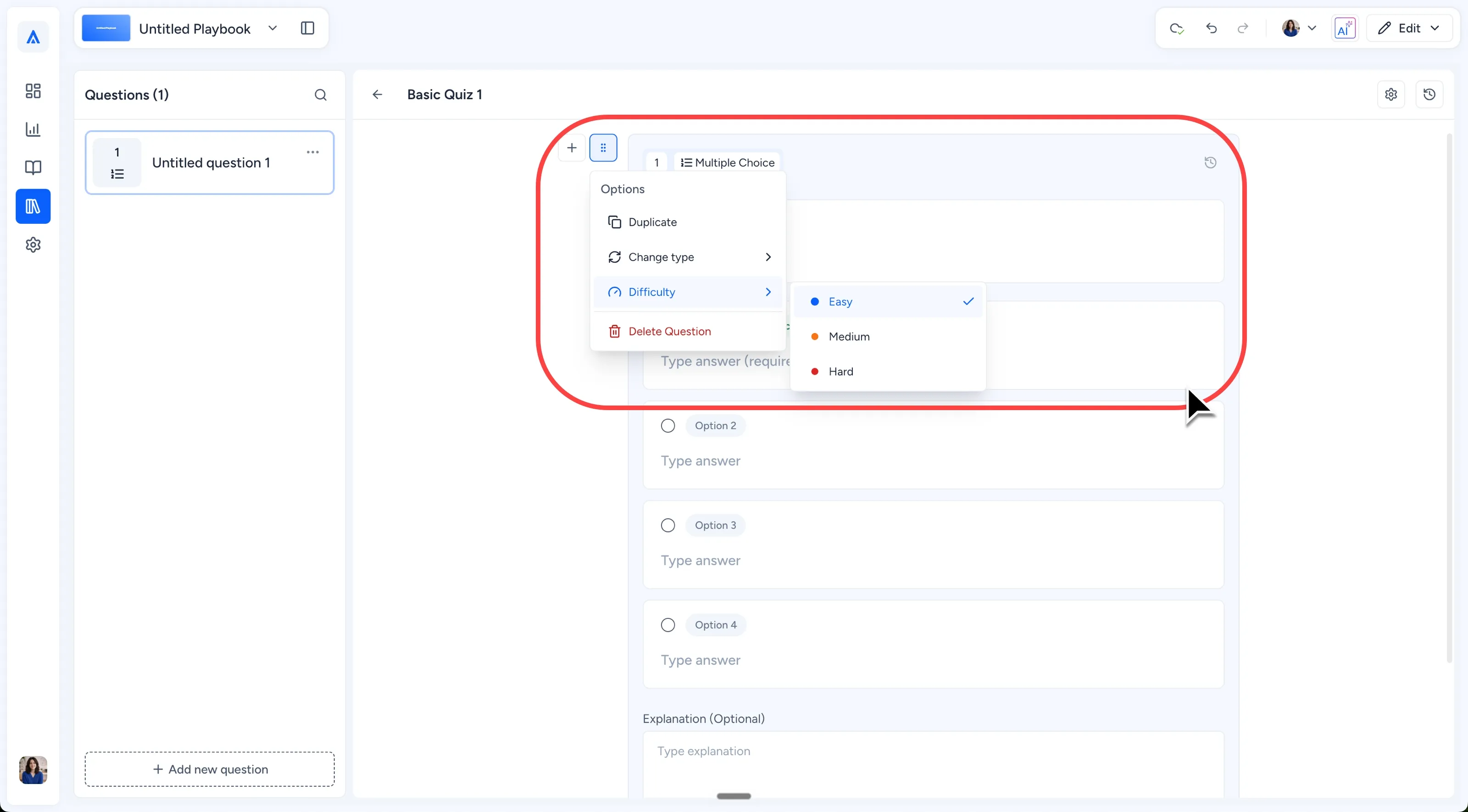
Note: Change type only switches between Multiple Choice, Checkboxes, and True/False. Question Group is a separate question type and cannot be selected through Change type. Create one from + Add new question instead.
What You Should See
The Quiz Editor opens for the selected Quest
Added questions appear in the Questions panel
Standard questions provide Change type and Difficulty controls
Question Groups provide Add related question and Link existing questions
The Settings gear appears at the top right for quiz-level configuration
Common Issues
I can't change my question to Question Group
This is expected. Change type only switches between Multiple Choice, Checkboxes, and True/False. Create a new Question Group from + Add new question.
I need to change how many or which questions learners see
Open the quiz Settings area for advanced ordering and random sampling options.
I need more Question Group options
The Question Group workflow covers naming the group, adding related questions, and linking questions that already exist within the quiz.
I need an earlier version of my quiz or question
Version history is available at both the quiz and question level. Selecting a dated version opens preview mode with the Version History toolbar on the right. Version history and restore options are part of the advanced quiz editing workflow.
What's Next
How to Edit a Quiz
Configure advanced quiz settings, manage ordering and Random sampling, and work with quiz and question version history.Quiz Question Types
Learn how Multiple Choice, Checkboxes, True/False, and Question Group question types differ and when to use each one.How to Create a Question Group
Create a Question Group, add related questions, or link existing questions from the same quiz.
Was this helpful?
Still need help? Ask the team