How to Edit a Quiz
Manage quiz questions, delivery settings, content, version history, and student-facing preview
Written By Maya
Last updated 18 days ago
What You’ll Do
Edit an existing quiz by reorganizing and managing questions, changing question delivery settings, adding richer content, restoring earlier versions, and previewing the student experience.
Before You Start
Start with a quiz that has already been created inside a Quest
Open the Playbook in the Playbook Editor and navigate to the Quest containing the quiz
If you still need to create the quiz, see how to create a Quiz first
This guide covers post-creation editing only
Steps
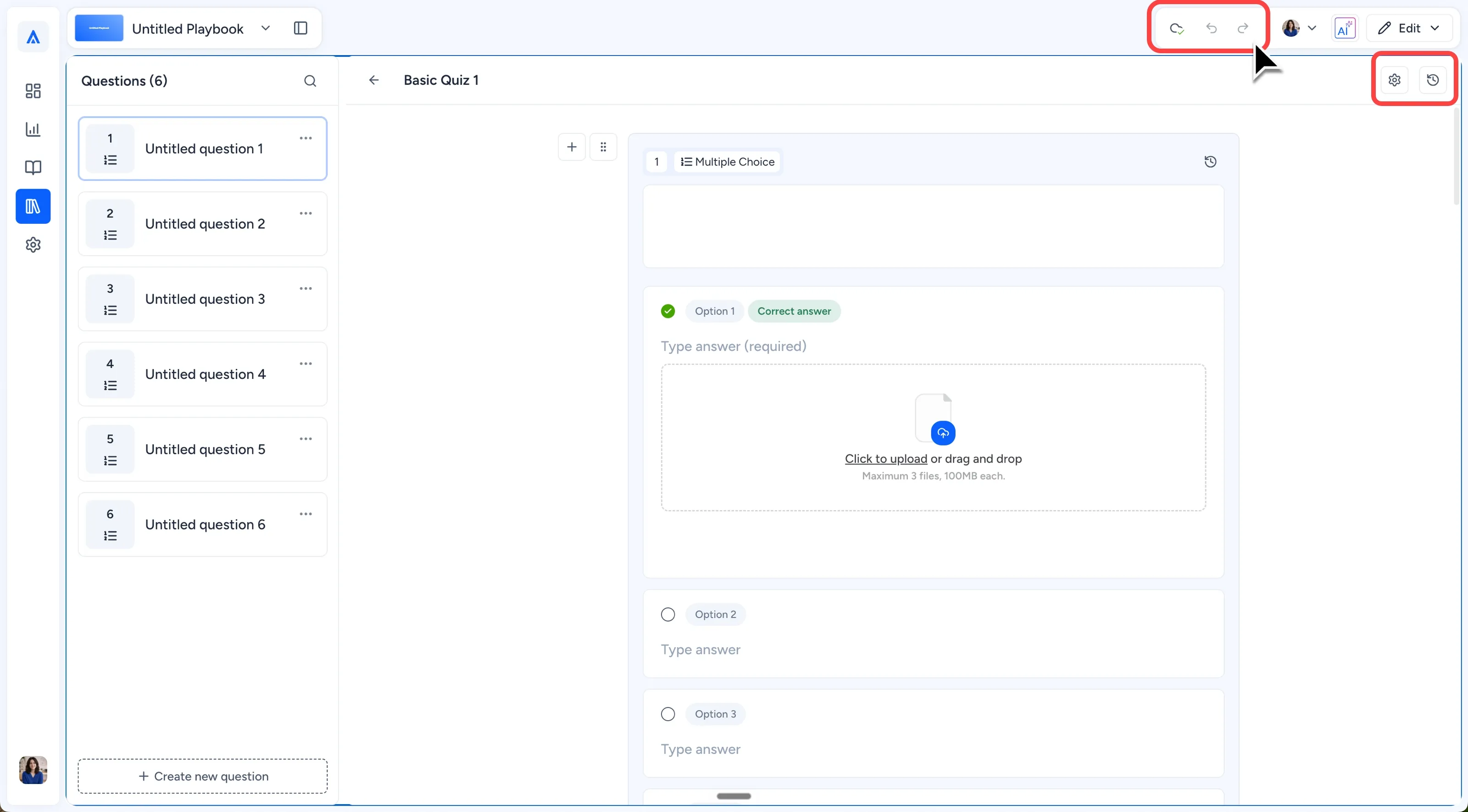
Select the existing green quiz icon in the Canvas to open the Quiz Editor. The top-level toolbar contains Undo, Redo, the cloud autosave indicator, and the Edit/View control. Edit is the default mode.
The quiz toolbar beneath it contains the quiz name, Settings, and quiz-level Version History.
Note: Quiz edits save automatically. A green checkmark in the cloud autosave indicator confirms the latest changes are saved, so there is no separate Save button.
Reorder or navigate existing questions. Drag the six-dot handle beside a question to move it to another position. Use the Questions panel on the left to jump directly to a question in longer quizzes. The panel also provides controls to duplicate or delete questions.
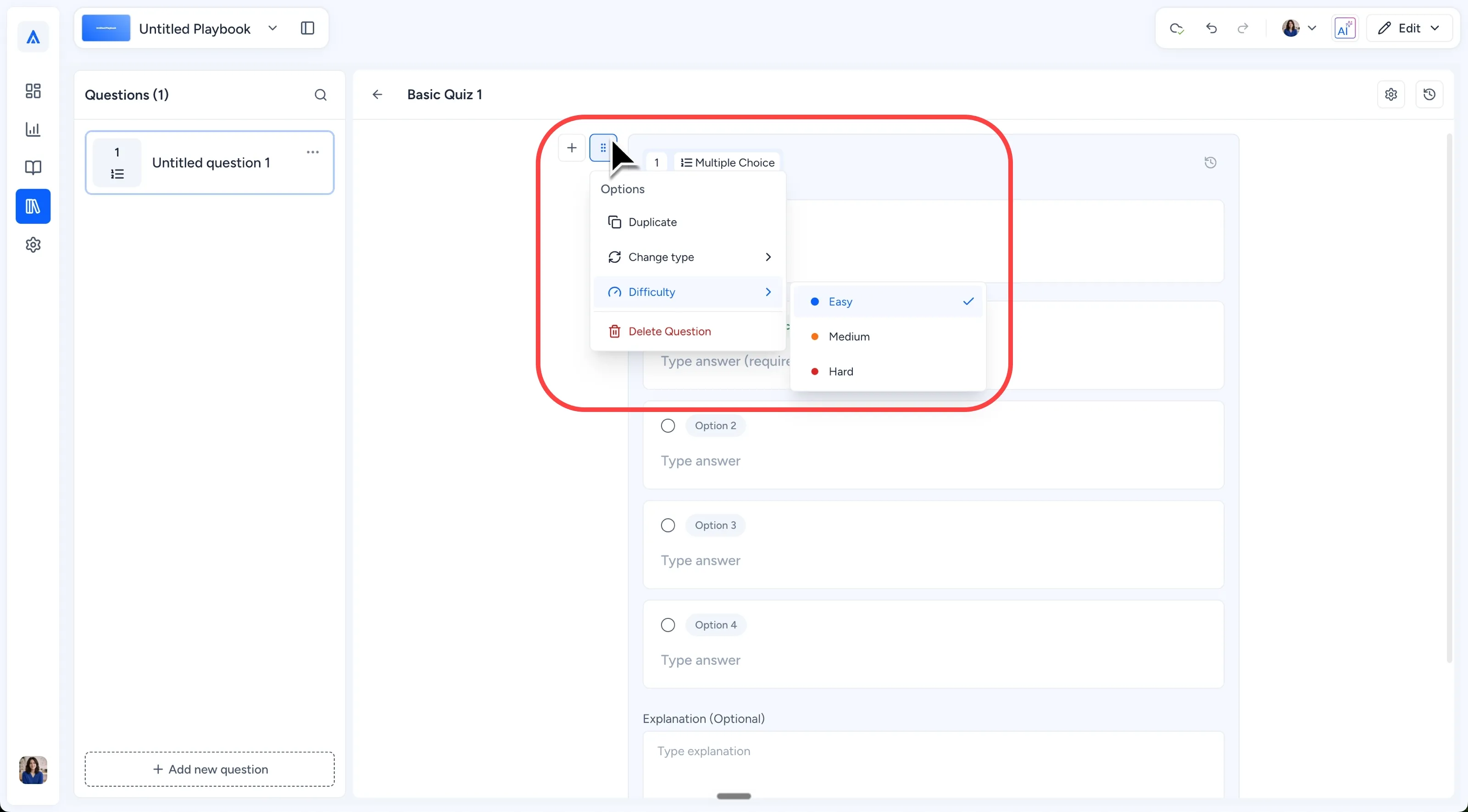
Select the six-dot options menu to manage a question. The menu includes Duplicate, Change type, Difficulty, and Delete question. Multiple Choice, Checkboxes, and True/False can be changed to one another.
Question Groups do not show Change type.
Note: See Quiz Question Types for the broader question-type comparison and How to Create a Question Group for the grouped-question workflow.
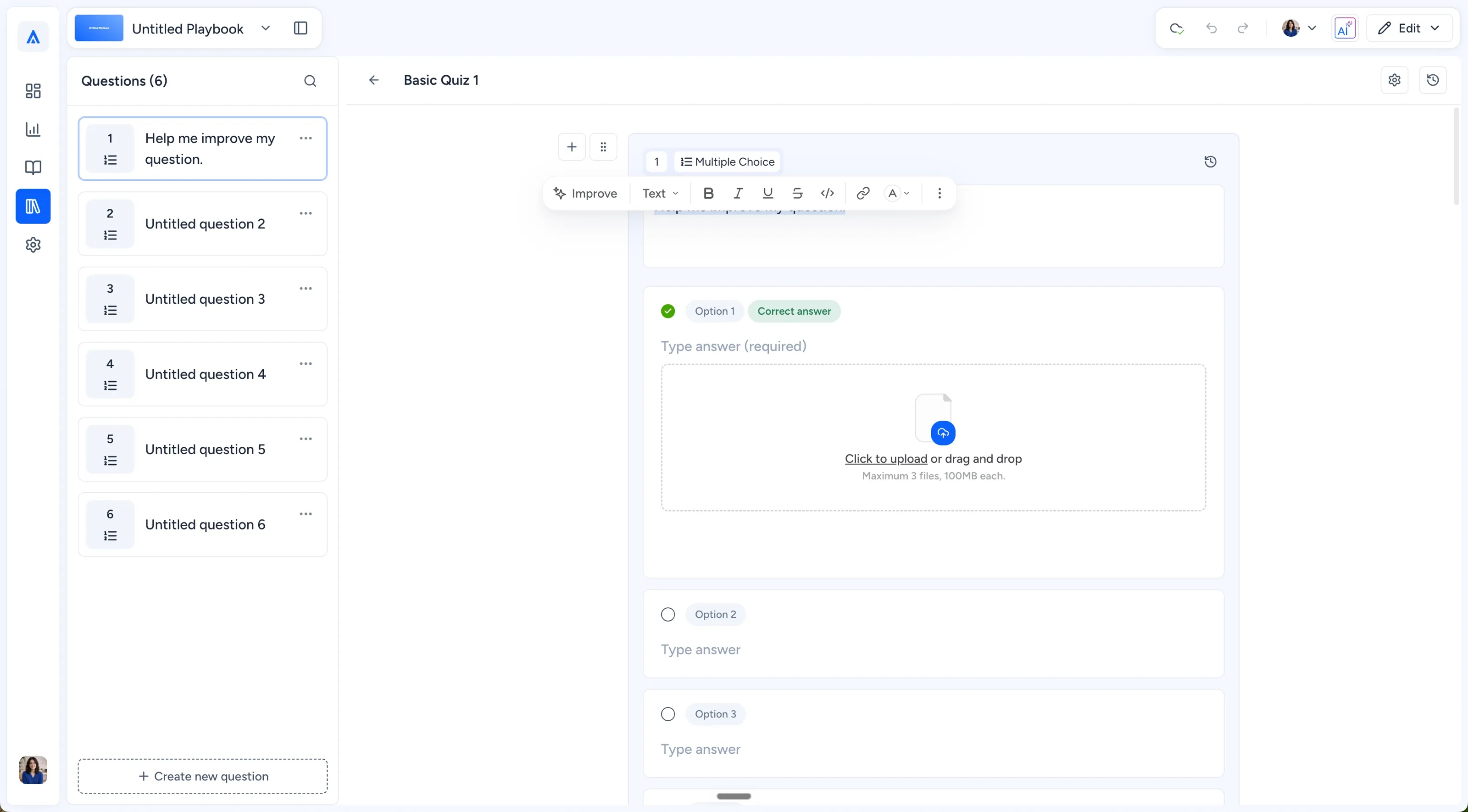
Add richer content by typing / inside an editable text box to open the slash menu. Use it to add content such as images, files, videos, and equations, along with supported text styles such as headings and lists.
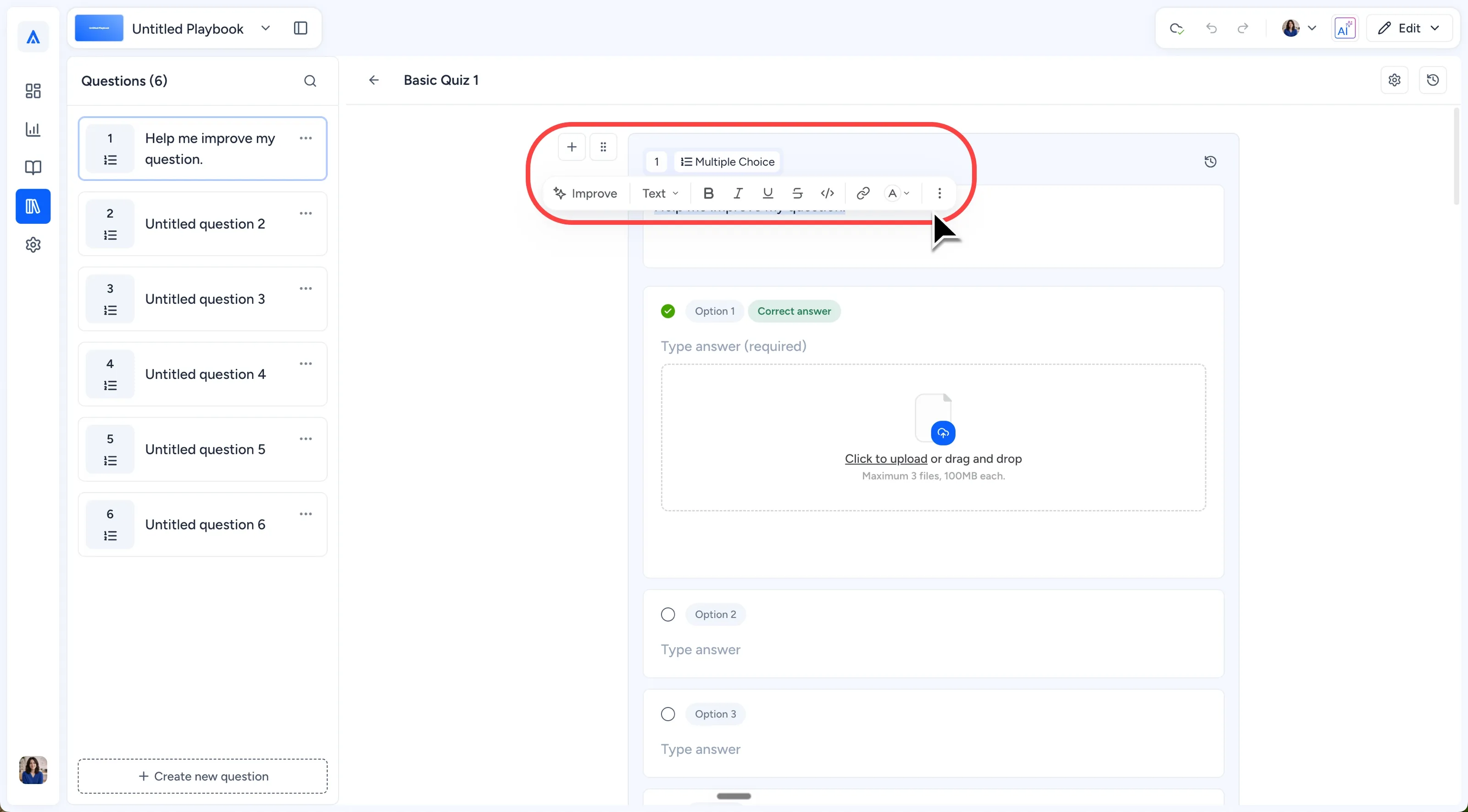
Highlight text to open the floating toolbar for formatting controls including styles, bold, italic, underline, links, alignment, text color, and other standard options.
Select Improve for AI-assisted actions such as adjusting tone, fixing grammar, shortening or expanding text, simplifying, summarizing, or translating.
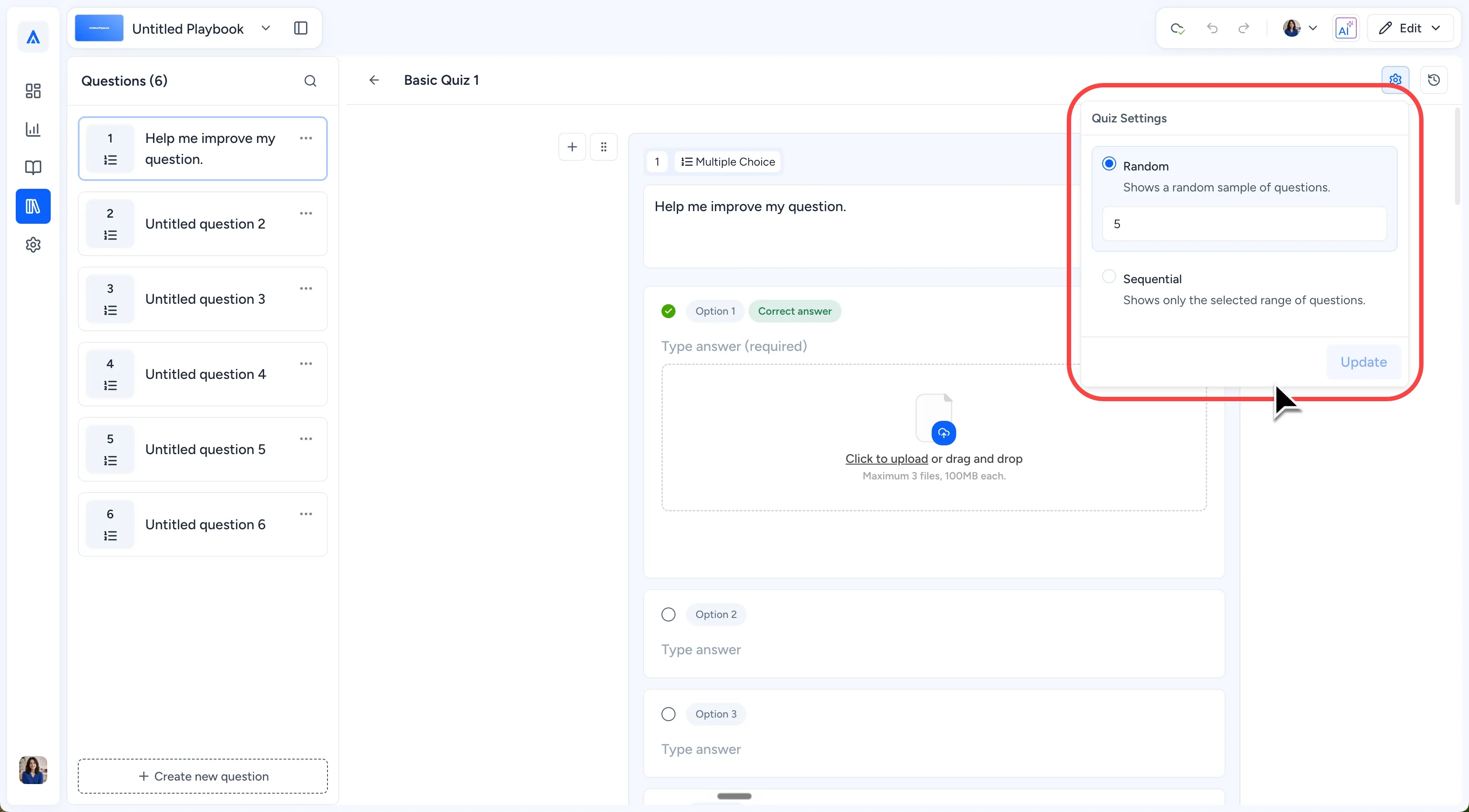
Select the Settings gear in the quiz toolbar to control which questions students receive. Random is the default option and lets you choose how many questions each student receives as a random sample from the available questions.
Sequential lets you select a starting and ending question so that specific range is displayed in order to your students.
Important: Quiz reward stars are preassigned and cannot currently be edited or manually increased. The supported reward range is 1–3 stars.
To review an earlier version of one question, select the reverse-clock Version History icon on that question. Question-level Version History applies only to the selected question, so you can return to earlier question content without rolling back the whole quiz.
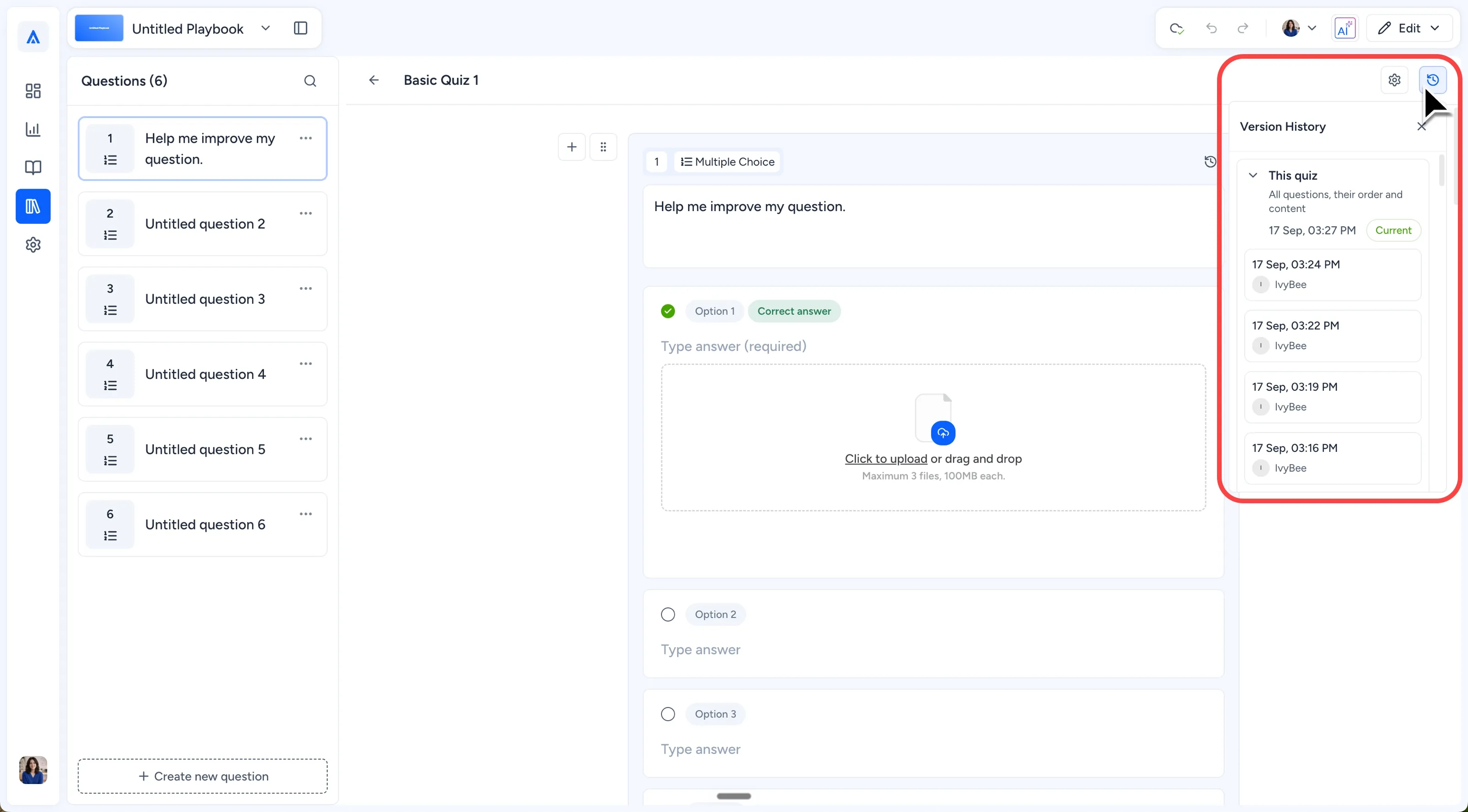
To restore an earlier version of the whole quiz, select the reverse-clock Version History icon in the quiz toolbar. Choose a version from the Version History column on the right and review the historical state.
Select the restore/back-arrow control in the Version History toolbar, then select the red Restore button to confirm. Quiz-level Version History is separate from the global Undo control, which reverses recent editing actions.
Return to the top-level toolbar for a final review. Open the dropdown beside Edit, then select View to see the quiz from the student-facing perspective.
What You Should See
The existing quiz opens in the Quiz Editor rather than a new-quiz state
The cloud autosave indicator shows a green checkmark after the latest changes are saved
Questions can be reordered and selected from the Questions panel
Standard questions provide post-creation management options from the six-dot menu
Quiz Settings provide Random and Sequential delivery options
Question-level and quiz-level Version History are available as separate controls
View displays the student-facing quiz
Common Issues
I don’t see a Save button
This is expected. Quiz changes save automatically. A green checkmark in the cloud autosave indicator confirms that the latest edits are saved.
I don’t see Change type on a Question Group
This is expected. Question Groups are managed separately and do not provide Change type. See How to Create a Question Group for that workflow.
I need an earlier version, but I only want to undo one question
Use the Version History icon on that individual question. Use quiz-level Version History when you need an earlier state of the entire quiz.
I’m trying to change the quiz’s star reward
Quiz reward stars are preassigned and are not currently editable. The supported reward range is 1–3 stars.
What's Next
How to Create a Quiz
Build a quiz from scratch, including adding your first questions and choosing the question types that fit your activity.Quiz Question Types
Learn how Multiple Choice, Checkboxes, True/False, and Question Group question types differ and when to use each one.How to Create a Question Group
Create a Question Group, add related questions, or link existing questions from the same quiz.
Was this helpful?
Still need help? Ask the team